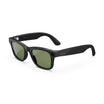
FAA REGISTRATION STICKER BUNDLE

Premium materials, precision-cut for a clean fit, easy application, and everyday protection.

  • Precision cut for a perfect fit
  • Premium 3M vinyl — built to last
  • Scratch resistant and easy to remove
  • Leaves no sticky residue
Finish Gloss

Ships Within 1-3 Business Days

Free U.S. Shipping on orders $40+

Premium Materials Premium vinyl adds grip and helps resist fingerprints, scratches, and scuffs.
Perfect Fit Precision-cut for your exact device without unnecessary bulk.
Easy Application Bubble-free installation and clean removal without sticky residue.
Goof Policy Mess up? One replacement is available; shipping & handling apply.

Easy to install.

We’ve got your back.

Watch a quick install video, follow the step-by-step guide, or contact our support team.
Applying a precision-cut skin to a MacBook

Step-by-Step Guide

How to Apply Your Skin

A clean surface, careful alignment, and controlled heat make the biggest difference.
  1. Watch the installation video first.

    Before applying your skin, watch the installation video for your device and coverage option. It will show the correct starting point, alignment, and heat technique.

  2. Clean and dry the device.

    Remove dust, oils, and fingerprints, then let the surface dry completely before you begin.

  3. Alignment is key.

    A misaligned skin can overhang on one side while falling short on the other. Carefully position the skin and check every edge and cutout before pressing it down.

    Alignment tip: If the adhesive keeps grabbing, place the skin back onto the backing paper and expose only a small portion of the adhesive side. Use that exposed section to align and lightly anchor the skin.

  4. Apply slowly and evenly.

    Once the skin is properly aligned, secure the anchored area and apply the remaining skin gradually. Smooth it from the center toward the edges in overlapping passes, checking the alignment as you go before pressing each section firmly into place.

  5. Use heat for curves, edges, and wrinkles.

    Heat from a hair dryer or heat gun increases flexibility, activates the adhesive, and helps the skin conform smoothly to curved and non-flat surfaces. If an edge feels sharp or raised, apply heat and smooth it down. If you see a wrinkle, gently lift the affected area, apply heat, and reapply it with a windshield-wiper motion from the center outward.

Product details

Everything you need to know

Description
Shop our FAA Drone Registration Decals Bundle for outdoor and indoor use. These laminated, UV-rated stickers resist fading, while being water-resistant, durable, and scratch-resistant with a matte finish. Easily apply and remove them without leaving any residue. Customize the stickers with your FAA number and phone number for added security in case of loss. Order now for high-quality registration decals that meet FAA requirements.
  • FAA Drone Registration Decals
  • Outdoor / Indoor
  • Laminated & UV-rated to resist fading
  • Water resistant
  • Durable & scratch resistant with a matte finish
  • Easy to apply with residue free removal (if you ever need to remove them, they’ll come off clean)
  • Customized with your FAA number as well as phone number in case of loss
  • Please keep in mind, custom orders are non-refundable.
Compatibility

Designed for BUNDLE. Confirm your exact device model before ordering.

What’s Included
  • FAA REGISTRATION STICKER BUNDLE
  • Devices and other items shown only to demonstrate the product are not included with your purchase.
Shipping & Returns

Most orders ship the same business day, though larger-quantity orders may require 1–3 business days. Available USPS, UPS, FedEx, and GlobalPost services are shown at checkout based on your destination.

Unused, unapplied non-custom products may be returned within 14 days of delivery.

Custom products: Design Your Own and other custom products are final sale and are not eligible for return, refund, or exchange.

See our Shipping & Delivery and Return & Refund Policy for complete details.

Frequently Asked Questions

Why does my uploaded image look lower quality in the preview?

The customizer may temporarily reduce the image resolution shown on screen to keep the preview fast and responsive. This does not reduce the production file: the print-ready artwork is generated from your original upload. For the best result, upload the highest-resolution original image available.

What happens to transparent areas in a PNG file?

Slickwraps does not print custom designs on clear material. If you upload a transparent PNG and do not select a background color, the transparent areas will print white by default.